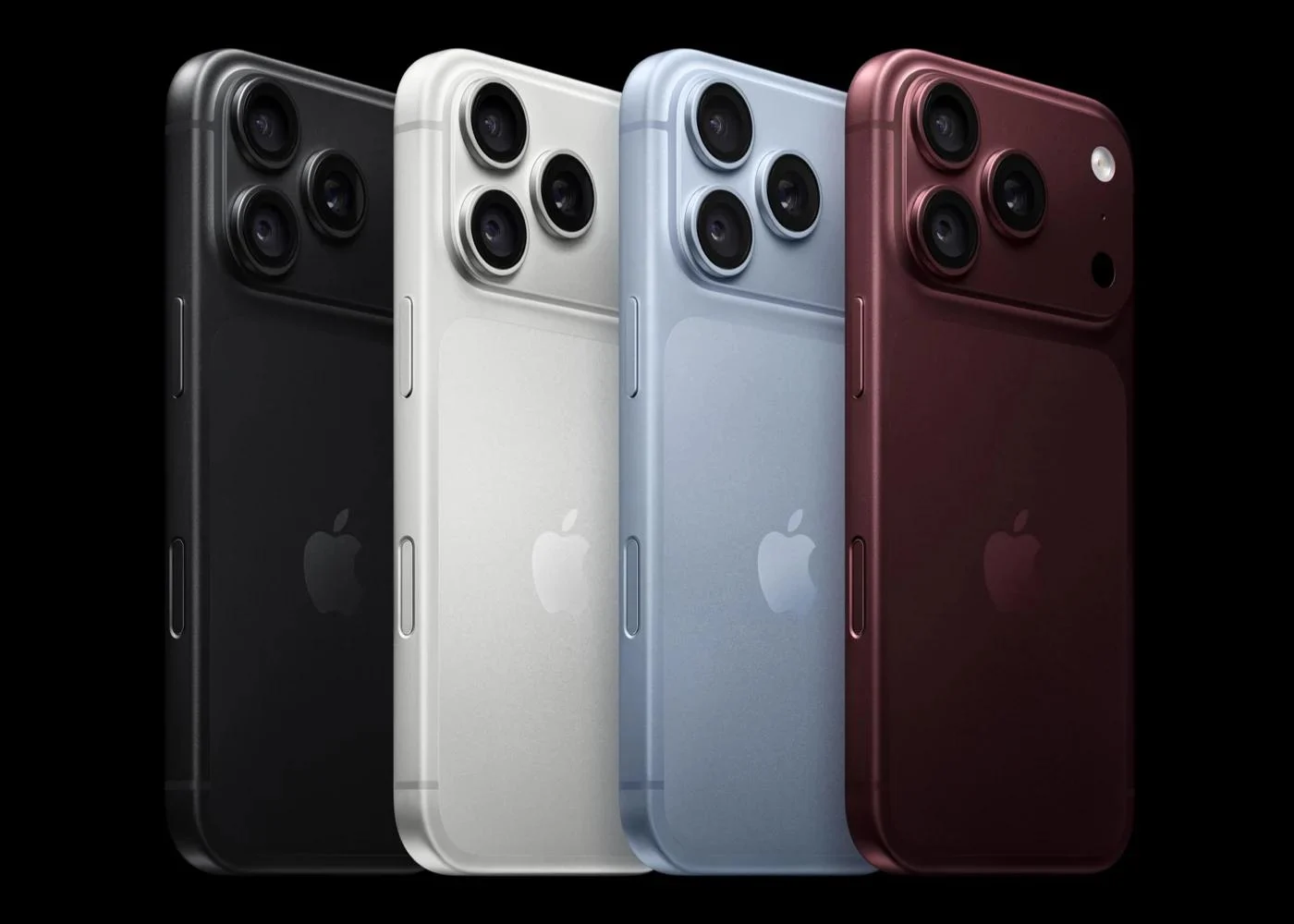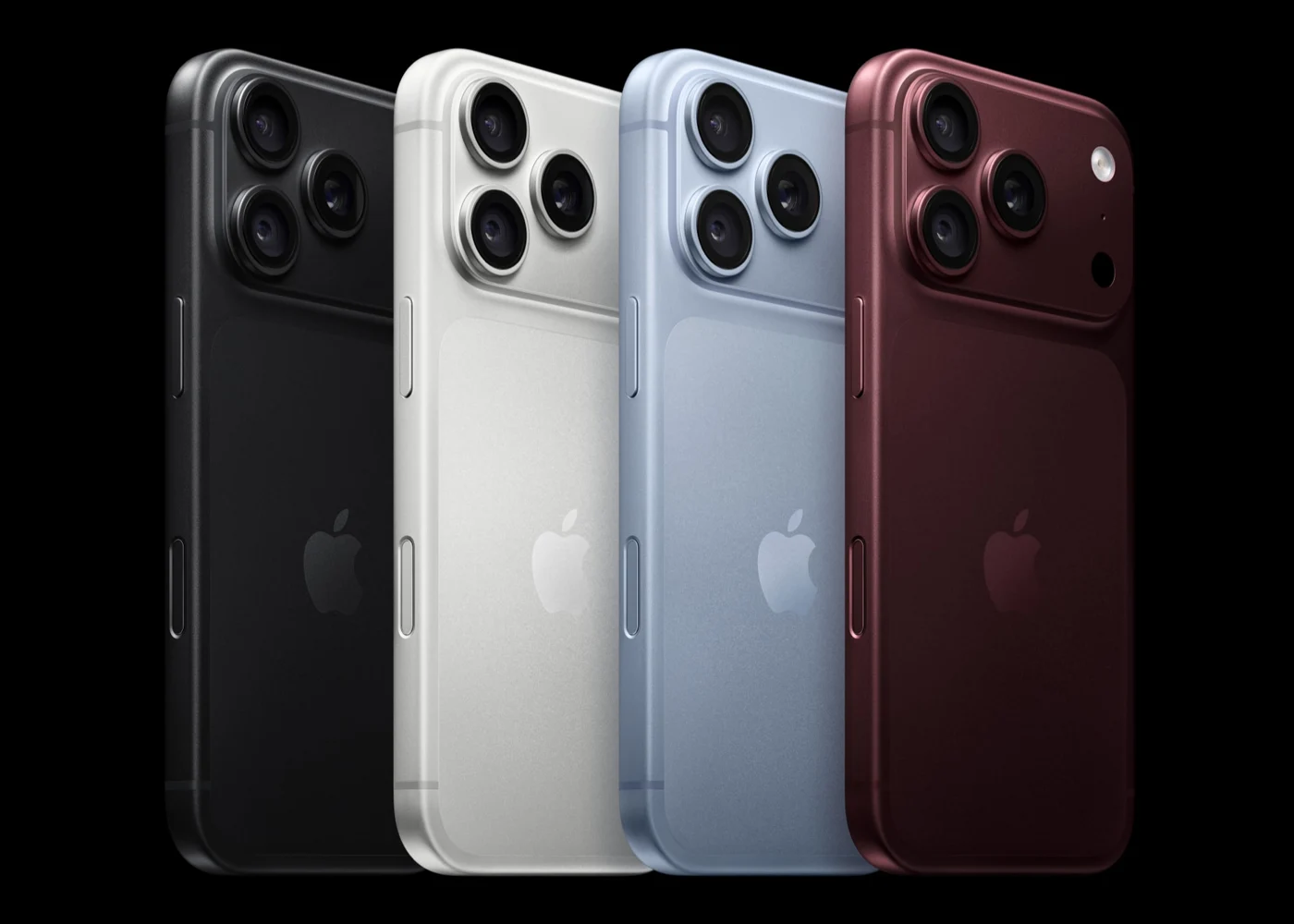
In this story
The day the new phone arrives, the thing most easily overlooked isn't how long the setup screens are. It's who can still use a phone during the wait after you pick a transfer method. Direct transfer occupies both devices. iCloud download lets you start using the new phone first. Neither can be summed up by a fixed number of minutes. The problem isn't luck. It's which kind of wait you chose.
Two kinds of waiting, and the difference isn't speed
When Quick Start reaches the step where you choose how to transfer your data, it offers two paths. Choose "Download from iCloud," and your apps and data download in the background on the new device, so you can start using it right away [1]. Choose "Transfer directly from your previous device," and you'll need to wait for the transfer to complete on both devices before you can use them [1]. That's the important distinction when you're planning your day, and it's the starting point for every scheduling decision that follows.
Pay attention to the boundary of "start using it right away." It means the new phone isn't locked by the transfer process. It doesn't mean every app, photo, and message has already arrived. Background download means you use the phone while data keeps filling in: what arrives first is usable first, and what hasn't arrived keeps waiting. Read that sentence as "once I choose, everything is done," and you'll probably be disappointed that same day.
The other path's cost is more blunt: both devices are occupied. You can't casually wipe the old phone, and the new phone can't slip into daily use ahead of time. Apple recommends keeping your devices near each other and plugged in to power until the data migration process is complete [1]. Transfer times can vary based on factors such as network conditions and the amount of data being transferred [1], so nobody can give you an accurate minute count in advance. What you control isn't speed. It's which kind of wait you chose, and which device can still move during that time.
If both devices are plugged in and you already planned not to use the old phone all day, direct transfer is actually simpler, and there's no need to deliberately take a detour for background download. Conversely, if you still need the old phone that day to reply to messages, take calls, or look things up, then "both devices must finish before either is usable" is a real cost. Acknowledge that cost first, then decide whether to choose it.
There's also a category of device that sits outside Quick Start's coverage from the start: if the new device is enrolled in Apple School Manager or Apple Business, you can't use Quick Start to transfer data from your current device [1]. This isn't a setting you got wrong. The path itself doesn't apply, and you should first confirm the available migration path according to your device management requirements.
When space runs short, temporary storage gives you a deadline
People who don't have enough iCloud storage get stuck at the backup step. Apple offers a transitional option: when you buy a new iPhone or iPad and don't have enough iCloud storage to back up your current device using iCloud Backup, you're eligible to get temporary iCloud storage [2]. It doesn't erase the space problem. It turns it into a transition with a clear deadline.
The path runs on the old device: Settings, then General, then Transfer or Reset [Device]. Under "Prepare for New [Device]," tap Get Started. If you see "iCloud Backup is Turned Off," tap Turn On Backup to Transfer. If you don't have enough iCloud storage, you see a message saying you're eligible to get free extra iCloud storage. Tap Continue, then wait for the backup to complete [2]. If you don't see this message, then you have enough iCloud storage to back up your iPhone or iPad to iCloud, and you don't need this step [2].
Two things here are easy to confuse. First, temporary storage appears inside this preparation flow. It isn't a prompt that necessarily pops up when Quick Start reaches the transfer choice. Second, it solves the space needed to back up the current device. It doesn't let you use the new phone however you like. The exact expiration should be based on what the device displays and what Apple's support documentation states. Writing it down is more reliable than calculating from memory.
The deadline is hard: you have 21 days to restore your temporary backup to your new iPhone or iPad before your temporary iCloud storage expires and your backup is permanently deleted [2]. If your new iPhone or iPad doesn't arrive within 21 days, you can get an additional 21 days. On your current iPhone or iPad, open Settings and tap Keep My Backup Longer [2]. To request additional time to restore your temporary backup before it's deleted, contact Apple Support [2]. The extension requires the situation described in the documentation and the corresponding action. It can't be treated as automatic, permanent retention.
The restore happens during setup on the new phone: on the Apps & Data screen, tap Restore from iCloud Backup, sign in to iCloud with your Apple Account, choose your most recent iCloud backup, and wait for the restore to complete [2]. After you restore, your temporary backup is available for 7 days before it's permanently deleted [2]. In other words, from the moment the restore succeeds, you still have a 7-day window. That doesn't mean you have to wipe the old phone the instant recovery finishes.
There is exactly one iron rule of order: do not erase your current iPhone or iPad until you restore your temporary backup to your new device [2]. This isn't saying that wiping the old phone deletes an existing cloud backup. It's saying the old phone is the source of the temporary backup and a fallback while recovery is being confirmed. Clearing it early removes the entire transition's fallback. Restore successfully, confirm the new phone's data is usable, and only then deal with the old phone.
The order of operations and planning the day
Before you start, get the conditions in place: update both the old and new devices to the latest system version, connect the old device to Wi-Fi and turn on Bluetooth, unlock it and leave it on the Home Screen, and turn on the new device and place it nearby [1]. If the setup prompt disappears from your current device, restart both devices and try again [1]. These aren't rituals. They're the preconditions for Quick Start to recognize each other properly.
When you reach the step where you choose how to transfer, see clearly which kind of wait you're choosing, then plan your day around it. Choose iCloud download, and the new phone can be used right away, but the background download is still running, so don't rush to put the old phone away. Choose direct transfer, and both devices should remain plugged in and near each other, until the migration completes [1]. Neither choice is absolutely better. It only has to fit your day.
If space is short, walk through the preparation flow on the old device, complete the temporary backup, then wait for the new phone. When it arrives, restore from iCloud Backup during setup and wait for the restore to complete. After a successful restore, the temporary backup still has 7 days before deletion [2], but whether the old phone should be wiped depends on whether the new phone's data is confirmed usable, not on how much of those 7 days remain.
The counter-case also needs to be stated clearly: if both devices are plugged in and you already planned not to use the old phone all day, direct transfer is actually simpler. If your iCloud storage was sufficient to begin with, you don't need the temporary storage step. Treating the old phone as something you can wipe at any time is the most expensive judgment in this whole question. What you really need to guard against isn't choosing wrong. It's cutting off the fallback before you've figured out which kind of wait you chose.
The day the new phone arrives, what you're waiting for isn't luck. It's the path you chose. Figure out which one it is first, then decide when to clear the old phone.
Making the end of migration something you can confirm
Before you start, you should also confirm that you know the email address or phone number and password you use with your Apple Account for iCloud. Apple lists this among the preparation requirements for getting temporary storage [2]. Don't wait until both devices are already in the setup flow to discover you can't sign in. This article won't ask you to send that information to anyone. What you need is to be able to complete account verification yourself, using official account help first if necessary.
Having the devices ready doesn't mean the backup is complete. A completed backup doesn't mean the new phone has been restored. Keep these three states separate in your notes. First see the backup complete, then choose the corresponding backup on the new phone, then wait for the restore process to finish. When checking progress, also be clear about which step you're looking at, so you don't use cloud upload progress to judge a device-to-device transfer, or treat the new phone reaching the Home Screen as the end of all background data. This kind of record mainly helps you plan your time. It isn't a new set of system steps.
For a work phone, list the uses you depend on most before choosing a migration window. Whether you must take calls today, whether you need a particular app to handle work, determines whether you can accept both devices being occupied at once. Apple says Quick Start might ask you to activate your cellular service, and it guides you through setting up Face ID or Touch ID [1]. These steps aren't the same thing as downloading app data. Finishing one of them doesn't mean all your usage conditions have been restored.
If you need to change phone numbers, account verification needs separate arrangements. Check the corresponding official help before migrating to confirm the setup requirements for the new device and number. If a particular app's sign-in or data transfer is involved, verify against that app's instructions too. Apple's general migration document doesn't guarantee that every third-party app avoids a fresh sign-in, and it doesn't provide an acceptance method for the completeness of every app's data. It isn't a basis for promising that "everything comes back exactly as it was."
Temporary storage is useful for people who are temporarily short on backup capacity because they're switching phones, but it doesn't mean a long-term backup plan is solved. After you restore, the temporary backup is kept for only 7 days, and Apple also states that if you want to keep using iCloud to back up your device, you can upgrade to iCloud+ [2]. Whether you need to pay should be decided by your long-term data volume and existing backup arrangements. Don't mistake this temporary benefit for permanently added capacity, and don't assume you must buy a long-term plan just for a few days of migration.
On September 18, Apple announced that the latest iPhone, Apple Watch, and AirPods lineups arrived in stores, and mentioned assistance such as Personal Setup [3]. That gives people who need in-person help a path to ask about, but it doesn't prove your nearby store has a specific color or capacity in stock, and it doesn't guarantee that an in-store migration finishes in a fixed time. Keep purchase delivery and migration planning separate, and leave yourself time to verify and restore. That way you won't have just unboxed the new phone and already be rushing to hand over the old one you still need.
Mentioned in this story
These links lead to official or retailer pages. We currently earn no affiliate commission from them. Check the destination for regional availability, configuration and pricing.
iPhone 18 Pro View official specifications ↗