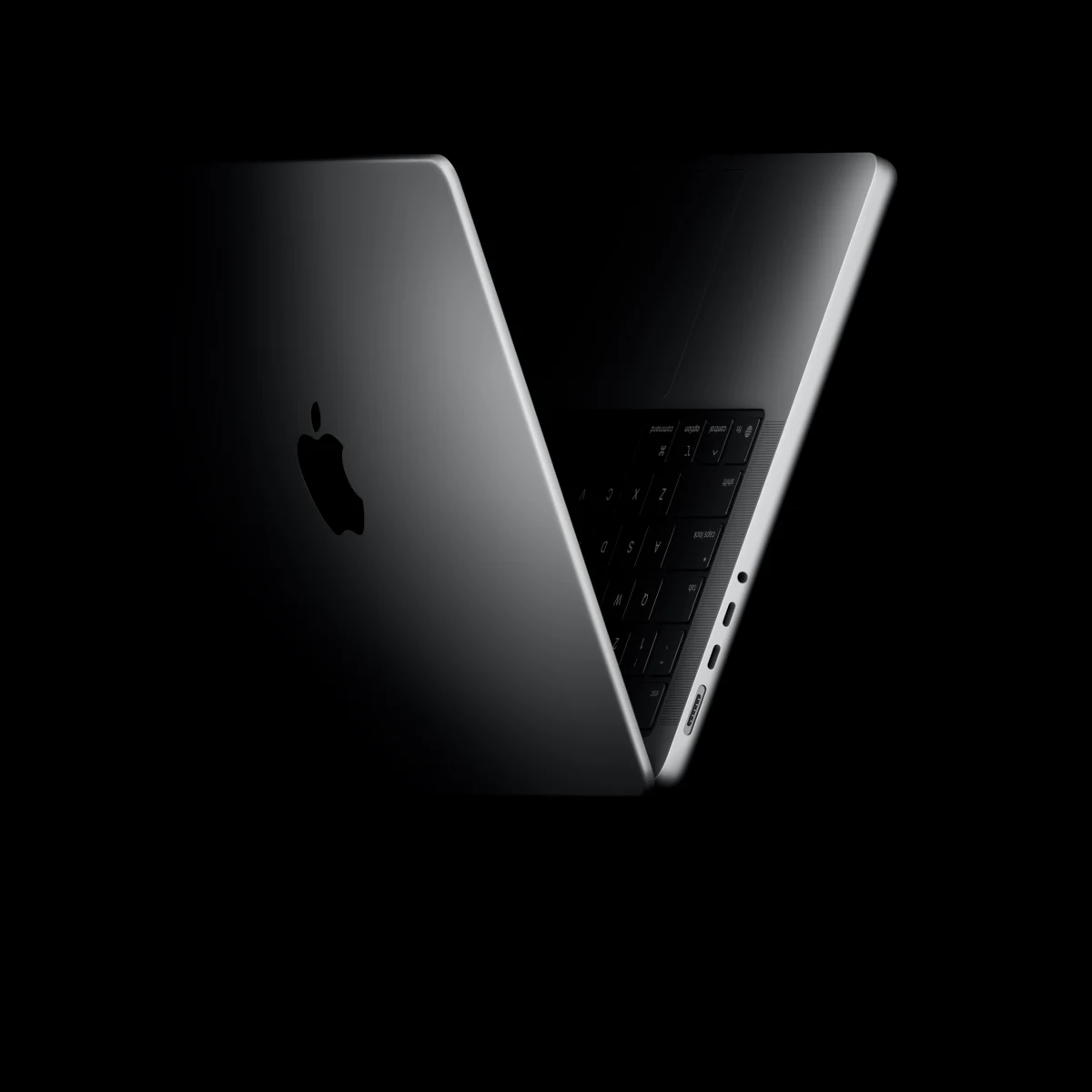
The current MacBook Pro lineup includes M5, M5 Pro, and M5 Max chips, and their port specifications are not the same. The base M5 comes with three Thunderbolt 4 ports rated at up to 40Gbps. M5 Pro and M5 Max models feature three Thunderbolt 5 ports, with Apple listing a maximum interface bandwidth of 120Gbps. That figure refers to interface bandwidth, not sustained file transfer speeds, and should not be treated as a real-world SSD throughput number. Buying a dock simply because it says “Pro” in the product name often leads to mismatched expectations.
External display support is another area where chip differences matter. The M5 chip supports up to two external displays, M5 Pro up to three, and M5 Max up to four. These are chip-level maximums, and specific resolution and refresh rate combinations depend on the configuration, with details available on Apple’s website. A dock that advertises 4K or 8K output does not guarantee your Mac can drive a display at that spec. The final output depends on the computer, the dock, and the cable—any weak link will cap the result. The chip's maximum display count should not be treated as a tested result for a given dock.
Many people buy docks to add ports, but current MacBook Pro models already include HDMI and an SDXC card slot. For photographers, importing from SD cards or connecting an external monitor still requires checking SD card specs and display input compatibility, so extra accessories are not entirely unnecessary. USB-A devices are another common reason to use an adapter like older hard drives, printers, or wireless receiver dongles. A simple USB-C to USB-A adapter handles those cases, provided it meets the device's power delivery and speed requirements, without the bulk of a full docking station.
On the storage side, if you already own a fast external SSD, first check whether your current file copy and display combination is sufficient. If it is, there is no need to replace anything. If it is not, identify which capability is lacking before deciding on an upgrade.
Before picking a dock, check which chip your MacBook Pro has and what its ports can actually deliver. Then clarify what you need most: driving displays, connecting storage, or keeping legacy peripherals working. Matching the dock to the chip and the task is more reliable than matching it to the word “Pro.”
Mentioned in this story
These links lead to official or retailer pages. We currently earn no affiliate commission from them. Check the destination for regional availability, configuration and pricing.
MacBook Pro View official specifications ↗