In this story
- Identifying Model Size and In-Box Adapter: Starting from the Package Contents
- Charging vs. Meeting Fast Charging Conditions: Two Different Judgment Criteria
- Air’s 70W Spec and the 67W Support Combination: The Correspondence Between Size and Adapter
- The 14-inch Pro’s Adapter Sources and Display Power Delivery Conditions
- 16-inch Pro’s Year-Based Cable Restriction: The Same MagSafe 3 Behaves Differently Across Model Years
- USB-C Shape Cannot Substitute for Compatibility: Identical Port Appearance Does Not Mean Identical Function
- Display Power Delivery vs. Standalone Adapters: Two Different Power Paths
- Data Rate, Wattage, and USB-C Cable Division of Labor: One Cable's Multiple Identities
- Apple’s roughly 30-minute test conditions: the gap between controlled environments and daily charging
- Observing your own charging process: record conditions first, then interpret changes
- Power Arrangements for Home, Office, and Travel: Scenarios Determine Device Selection
- Complete Device Combinations and Pre-Purchase Verification: An Item-by-Item Checklist
Identifying Model Size and In-Box Adapter: Starting from the Package Contents
When you get a MacBook, the first thing to confirm isn't whether it "supports fast charging," but what exactly came in the box with your specific machine. Apple ships completely different power adapters for the same screen size depending on the chip configuration, and the contents of the packaging are your first point of reference.
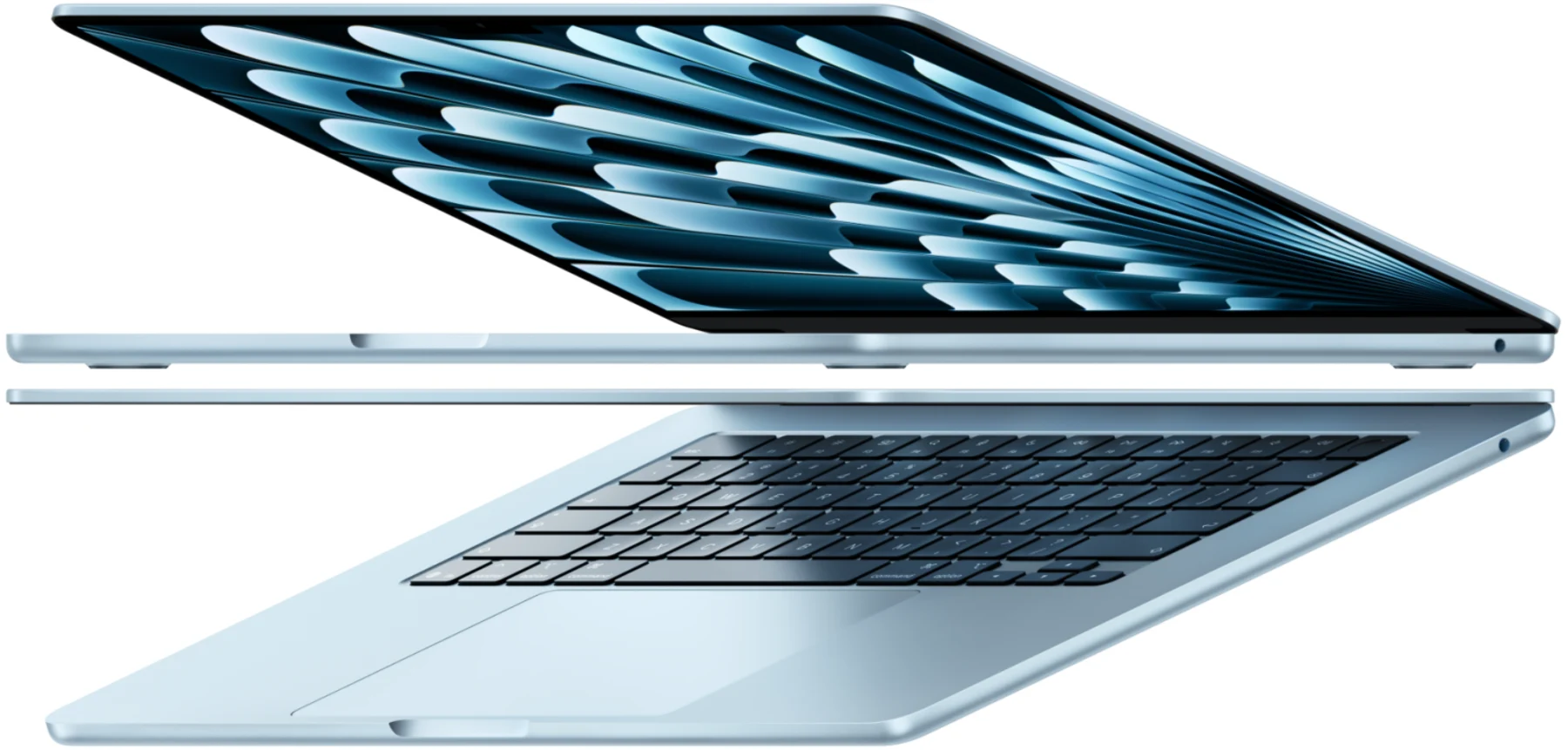
The 13-inch M5 MacBook Air comes with a 40W Dynamic 60W Max power adapter in the box[1]. The name is easy to misinterpret—the product name lists both 40W Dynamic and 60W Max, though no measurement of dynamic output duration is provided here. Apple does not list this adapter among the power sources that meet fast charging conditions. In other words, the standard in-box adapter can charge the Air normally and sustain daily use, but it cannot deliver what Apple defines as fast charging[1]. If you care about metrics like "50% charge in 30 minutes," the original box adapter does not fall within the fast charging conditions.
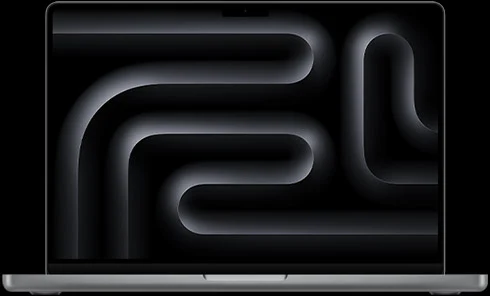
The 14-inch MacBook Pro situation is more complicated. This size covers three chips—M5, M5 Pro, and M5 Max—and the official specifications require a 96W or higher USB PD power source for fast charging[2]. However, Apple ships a 70W adapter with some configurations and a 96W adapter with others[2]. This means that two 14-inch Pro machines with the same size and same external appearance may or may not have an in-box adapter that meets fast charging conditions. You cannot assume that just because you bought a 14-inch Pro, the adapter in the box supports fast charging. You must check the specific configuration and the actual wattage of the adapter included in the package.
The 16-inch MacBook Pro packaging is relatively consistent, but its fast charging conditions are strongly tied to cable type and model year, which will be covered in later sections. At this stage, it's enough to know that the 16-inch Pro's in-box adapter has sufficient wattage on its own, but whether fast charging can be achieved also depends on the cable combination at the other end.
There is a detail that is easy to overlook here: the "fast charging" listed on Apple's specifications page is a clearly defined combination of conditions, not a "just plug it in and it fast charges" scenario. It requires a specific power adapter wattage, a specific cable type, and a specific correspondence between model and year[3]. The adapter included in the box ensures the computer can charge and operate normally, but it does not necessarily mean "fast charging conditions are met." These are two issues that need to be understood separately.
Charging vs. Meeting Fast Charging Conditions: Two Different Judgment Criteria
Conflating "can charge" with "meets fast charging conditions" is the most common point of confusion when selecting adapters and cables. Whether normal charging works still requires checking compatibility among the power source, computer, and cable. The computer negotiates voltage and current on its own. Even if the adapter's wattage is lower than the computer's maximum power draw capability, the charging process will still proceed, just at a slower rate. This falls under the category of "can charge."
But the fast charging conditions listed in Apple's documentation are a stricter combination. Taking the 13-inch M5 MacBook Air as an example, fast charging requires a 70W or higher USB PD power source paired with a MagSafe 3 cable or USB-C cable[1][3]. The standard in-box 40W Dynamic 60W Max adapter is not on this list, so even though it can charge, it does not meet fast charging conditions. Choosing a 70W power source still requires matching the model and cable combinations supported by the documentation.
There is a boundary case that requires particular attention here: Apple's fast charging support document lists a combination of a 67W adapter with the corresponding cable, but this applies only to the 13.6-inch model[3]. This means not all MacBook Air models can achieve fast charging with 67W, and it also means that a 67W adapter can indeed meet fast charging conditions on a specific model. You cannot simply say "67W doesn't support Air fast charging at all." But the scope of this information is narrow, covering only the 13.6-inch size. Other Air models do not apply. If your Air is not the 13.6-inch model, 67W is not within the fast charging conditions.
The 14-inch MacBook Pro's fast charging conditions require a 96W or higher USB PD power source[2]. There is a pitfall here that is easy to step into: the total wattage printed on a third-party multi-port charger and the actual output wattage from a single port are two different things. Taking the Anker 100W 3-Port Smart Display charger as an example, the official description states that when two ports are used simultaneously, the default distribution is 70W plus 30W, or 67W plus 33W, depending on which port combination is used[5]. That means even if you only have the computer plugged in as one device, if something else is connected to the other port, the computer may only receive 70W or 67W, falling short of the 96W required for 14-inch Pro fast charging. This charger has a conditional mode where, when the lower-power port has not established a protocol and the voltage is below 6V and current below 1A, it can redistribute to 95W plus 5W after approximately one minute[5]. But this 95W still does not equal 96W, and the triggering conditions are strictly limited. It is not something that happens automatically just by plugging in. You cannot write 95W as "meeting the 14-inch Pro specification of 96W," nor can you assume that the computer will receive near-total-wattage single-port output in any usage scenario.
Another scenario that requires distinction is power passthrough via a USB-C hub. The Anker 555 USB-C Hub (A8383) has a PD-IN port specifically for power input, which does not support data or video transmission. It has a separate USB-C data port that supports 10Gbps speeds but does not support video output or charging[6]. When you connect a 100W power source to the PD-IN port using an appropriate cable, the hub can deliver up to 85W of power to the computer, with the remaining 15W being the power budget the manufacturer reserves for the hub itself[6]. This 85W passthrough wattage cannot be equated with the 94W third-party display power condition mentioned in Apple's documentation, nor can you assume that because the hub's casing says 100W, it can meet the fast charging requirements of a 14-inch or 16-inch Pro. 85W is 85W. It falls short of 96W, and falls even further short of the 140W fast charging condition for the 16-inch Pro.
The gaps between these numbers illustrate one thing: before purchasing any third-party charger or hub, you need to check against the specific wattage requirements listed in Apple's official fast charging documentation, not look at the largest number printed on the product's casing. The total wattage labeled by the manufacturer, the maximum single-port wattage, the distribution strategy when multiple ports are used simultaneously, and the passthrough wattage after going through a hub are four different concepts. "Can charge" only means the protocol handshake succeeded and current has started flowing. Meeting fast charging conditions requires that the adapter wattage, cable specification, and model combination all fall within the support list explicitly published by Apple[3]. The gap between the two is exactly what you need to check item by item when making a purchase.
Air’s 70W Spec and the 67W Support Combination: The Correspondence Between Size and Adapter
The fast-charge condition for the 13-inch M5 MacBook Air is stated clearly on Apple’s spec page: a 70W or higher USB PD power source is required[1]. This 70W is a threshold value, not a recommendation or a “best pairing.” It means that if you want this Air to reach approximately 50% charge in about 30 minutes under Apple’s defined controlled test conditions, the power adapter must meet the 70W condition in that spec; the support document separately lists a 67W combination for the 13.6-inch model, which cannot be omitted[1][3].
The 70W adapter itself is an independently purchasable accessory, available from Apple and from third-party brands with corresponding specs. If you decide to buy a separate 70W adapter for the Air, the issue is not whether the adapter itself works, but whether the cable you have matches. Both MagSafe 3 cables and USB-C cables are within the fast-charge cable range listed by Apple[3]. Using MagSafe 3 to connect the 70W adapter and the Air, the magnetic connector directly occupies a dedicated charging port and does not take up a USB-C port. Using a USB-C cable means you need to occupy one USB-C port for charging, and the cable itself must support the corresponding power delivery. Not all USB-C cables can stably carry 70W; the cable’s rated power is another item that needs checking, which will be expanded in a later section.
The 67W adapter situation needs to be addressed separately because it easily leads to two opposite misreadings. Apple’s fast-charge support document does list a combination of the 67W adapter with the corresponding cable, but this record applies only to the 13.6-inch model[3]. That is, if you have a 13.6-inch MacBook Air, the 67W adapter can satisfy the fast-charge condition. If your Air is a different size, this record does not apply. You cannot infer that all Airs can fast charge with 67W just because the number 67W appears in the document; nor can you assert the reverse, that 67W is invalid for any Air, just because most Airs require 70W. The 13.6-inch is a specific size boundary, and the fast-charge validity of 67W is confined within that boundary.
This boundary condition creates a very specific decision problem in actual purchasing: if you are unsure of your Air’s size, or if you have Airs of different sizes that need to share an adapter, then 70W is the safer choice because it covers the fast-charge condition for all 13-inch M5 Airs, though you should still check the corresponding support combination for different sizes. The 67W is a conditional choice, valid only on specific models. This judgment requires no guessing, only confirming the screen size and then cross-referencing the correspondence listed in Apple’s support document[3].
There is another detail easily overlooked: among the fast-charge cable options listed by Apple, what pairs with the 67W adapter is the “corresponding cable”[3]. What the document explicitly lists are USB-C cables or MagSafe 3 cables that support the corresponding power delivery. If you use a USB-C cable that only supports 60W to connect the 67W adapter and the Air, even if the adapter and model combination is within the fast-charge list, the cable itself can become the bottleneck. The cable’s power rating is usually printed on the cable jacket or noted in the product spec page and needs to be confirmed before purchase.
The 14-inch Pro’s Adapter Sources and Display Power Delivery Conditions
The fast-charge condition for the 14-inch MacBook Pro is more complex than for the Air because it involves differences in the included adapter due to chip configuration, as well as the additional path of power delivery from third-party displays.
Apple’s spec page states that the fast-charge requirement for the 14-inch MacBook Pro is a 96W or higher USB PD power source[2]. This requirement covers the M5, M5 Pro, and M5 Max chips and does not lower the threshold for different chips. However, Apple includes a 70W adapter in the box for some 14-inch Pro configurations and a 96W adapter for others[2]. This means that for the same size 14-inch Pro, the adapter included at purchase may or may not satisfy the fast-charge condition. You cannot assume that the in-box adapter supports fast charging just because “I bought a 14-inch Pro”; you must check the adapter wattage in the package contents. If the box contains a 70W adapter, then you need to purchase a 96W or higher adapter separately to meet the fast-charge condition. If the box already contains a 96W adapter, then the adapter end has met the requirement, and the next step is to confirm whether the cable matches.
Apple’s fast-charge support document lists two power paths for the 14-inch Pro. The first is using a 140W or 96W adapter with the corresponding cable[3]. The logic of this path is similar to that of the Air: if the adapter power meets the threshold and the cable matches, the fast-charge condition is established. The second path is using a 94W third-party display with the corresponding Thunderbolt 3 or USB-C cable[3]. The peculiarity of this path is that the power source is not a standalone power adapter but a display. In the supported connection, the Mac outputs video to the display, and the display can deliver power to the Mac; the power delivery capability of this cable determines whether the computer can receive the power required for fast charging.
The number 94W needs careful handling. What Apple’s document states is 94W, not 96W, nor 100W[3]. This means that if you use a third-party display with a rated power delivery of 94W, paired with a cable that meets the requirements, the fast-charge condition for the 14-inch Pro can be established. But if the display’s power delivery capability is 85W or 90W, even if the number is close, it is not within the conditions listed by Apple. The previously mentioned Anker 555 USB-C Hub, with a 100W power input, delivers a maximum of 85W pass-through power to the computer[6]; this 85W cannot be equated to the 94W display power delivery condition. There is a 9W gap between 85W and 94W, and this gap means that the path of power delivery through a Hub cannot substitute for the path of direct power delivery from a display to satisfy the fast-charge requirement.
The Studio Display situation requires a separate explanation. The current standard Studio Display’s upstream Thunderbolt 5 port provides 96W power delivery to the host[4]. The number 96W itself reaches the fast-charge threshold for the 14-inch Pro and does not need to rely on the 94W third-party display path. However, whether the Studio Display’s 96W power delivery enables fast charging for the 14-inch Pro also depends on the cable and host-side compatibility. Apple notes on the Studio Display spec page that the display is compatible with specific Apple Silicon Macs and requires Tahoe 26.3.1 and later[4]. This is a complete compatibility note for the display, and one cannot infer from it that power delivery is software-locked by a certain system version. If you use a Studio Display connected to a 14-inch Pro, the adapter-end problem no longer exists, but you need to confirm whether the macOS version meets the requirement and whether the cable used supports 96W power delivery and Thunderbolt signal transmission simultaneously.
Third-party multi-port chargers require special caution in the 14-inch Pro fast-charge scenario. Take the Anker 100W 3-Port Smart Display charger as an example. Its total power is 100W, but when two ports are used simultaneously, the default allocation is 70W plus 30W, or 67W plus 33W, depending on the port combination used[5]. If you have only the 14-inch Pro connected but another device is also attached to another port, the computer may receive only 70W or 67W, far below the 96W fast-charge threshold. This charger has a conditional mode: when the lower-power port has not established a protocol and the voltage is below 6V and current below 1A, it can reallocate to 95W plus 5W after approximately one minute[5]. 95W still does not equal 96W, and the triggering conditions for this mode are strictly limited; it is not automatically obtained just by plugging in. You cannot assume that in any usage scenario the computer can receive a single-port output close to the total power, nor can you directly write 95W as “meeting the 14-inch Pro spec’s 96W.” If you plan to use a multi-port charger to fast charge a 14-inch Pro, what you need to confirm is whether the maximum single-port output power is at least 96W and whether that port can stably maintain this power when multiple ports are in use simultaneously. The total power number on the product spec page cannot answer this question; you need to check the port allocation table provided by the manufacturer.
16-inch Pro’s Year-Based Cable Restriction: The Same MagSafe 3 Behaves Differently Across Model Years
The fast-charging conditions for the 16-inch MacBook Pro are the most specific among all Apple notebooks, because they introduce a strict dividing line based on model year. This line does not involve adapter wattage or chip generation; it falls directly on the type of connecting cable.
Apple’s fast-charging support document lists two distinct cable paths for the 16-inch Pro. The first path uses a 140W adapter paired with a MagSafe 3 cable, applicable to all 16-inch MacBook Pro models from 2021 and later[3]. The second path uses a 140W adapter paired with a 240W USB-C charge cable, but this path applies only to 16-inch MacBook Pro models released in November 2023 or later[3]. The adapter wattage is identical for both paths—140W—and the difference lies entirely in the cable type and the release date of the machine.
This year-based restriction means that if you own a 16-inch Pro covered by the support document but released before November 2023, that USB-C adapter-and-cable path is not listed; the MagSafe 3 path is listed. Even if you have an Apple official 240W USB-C charge cable and connect it between a 140W adapter and this computer, it is not listed among Apple’s fast-charging conditions[3]. The computer will still charge, and the USB-C port will negotiate power with the adapter, but this path is not recognized by Apple as fast charging. This is not a matter of cable quality or insufficient wattage, but a condition boundary explicitly drawn in Apple’s fast-charging support document. The later USB-C combination should not be applied to earlier models; the document also lists other display combinations, and the cable subsection cannot be treated as the complete set of power delivery paths.
The situation differs for 16-inch Pro models from November 2023 and later. These machines accept both paths simultaneously under fast-charging conditions: a 140W adapter with a MagSafe 3 cable, or a 140W adapter with a 240W USB-C charge cable[3]. The two paths are listed side by side in Apple’s document with no priority assigned. This means users of newer 16-inch Pro models have an additional option when choosing a charging cable. If you are accustomed to using a USB-C port to connect a display or dock, using the same 240W USB-C cable for direct charging can reduce the number of plugging and unplugging cycles. If you prefer the magnetic attachment of MagSafe 3, that path remains equally valid.
A detail that is easy to confuse here: the 240W USB-C charge cable is an independent product specification, sold by Apple and also available from third-party brands. Its rated carrying capacity is 240W, far exceeding the 140W required for 16-inch Pro fast charging. However, a cable meeting its rated wattage does not automatically mean the fast-charging condition is satisfied; the model year must also fall within the applicable range listed by Apple. You cannot assume that any 16-inch Pro can fast charge with a 240W USB-C cable just by seeing one; you must confirm whether the machine’s model release date is November 2023 or later[3].
This year-based restriction creates a very specific decision problem in actual purchasing. If you have 16-inch Pro models from different years that need to share charging equipment, the listed140W plus MagSafe3 adapter path covers the supported2021-and-later models. The 240W USB-C fast-charging combination is limited to models from November 2023 and later; it cannot be said that the cable is ineffective for all uses with earlier machines. If you are unsure of your computer’s specific model release month, you can confirm it through the model identifier in System Information, then cross-reference it against the correspondence listed in Apple’s support document[3]. This judgment requires no guesswork, only a check of the model release date against the year threshold in the document.
The in-box adapter wattage for the 16-inch Pro is itself 140W, a point that is relatively consistent across packaging lists. It is still necessary to verify the actual included power supply and cable condition; whether the fast-charging condition is met depends entirely on the type of cable you use and the year-matching relationship with the model. If you use a MagSafe 3 cable to connect the in-box 140W adapter to a 16-inch Pro from 2021 or later covered by the document, the fast-charging condition is satisfied. If you use a USB-C cable, two conditions must be met simultaneously: the cable itself must be a 240W specification, and the model must be released in November 2023 or later[3]. Both conditions are indispensable.
USB-C Shape Cannot Substitute for Compatibility: Identical Port Appearance Does Not Mean Identical Function
The physical shape of the USB-C port has become standard across Apple notebooks over the past few years, but the uniformity of port appearance conceals a key fact: USB-C ports and cables that share the same shape can differ significantly in their power delivery capabilities. Using a USB-C cable that looks the same to connect the same adapter and computer can result in completely different actual power transmission levels.
In the fast-charging scenario for the 16-inch Pro, this limitation is most apparent. The USB-C fast-charging path listed by Apple requires the use of a 240W USB-C charge cable[3]. If you use a 100W USB-C cable to connect a 140W adapter to a 16-inch Pro from November 2023 or later, even if the cable physically fits into the ports on both ends, it does not satisfy the fast-charging condition. The computer may charge at 100W or lower, but this path is not within the scope of fast charging as defined by Apple. The 240W figure is not a recommendation; it is a condition threshold.
The same logic applies to fast-charging scenarios for the 14-inch Pro and Air. The 14-inch Pro requires a 96W or higher power source for fast charging; if you use a 60W USB-C cable to connect a 96W adapter to the computer, the cable itself becomes the bottleneck. The Air requires 70W for fast charging, and a 60W cable is similarly insufficient. The cable must satisfy the target power delivery combination; it cannot be required that cables for all lower-power devices match the maximum total wattage of the charger. This verification step is especially important when purchasing third-party cables, because a large number of USB-C cables on the market are rated at 60W or 100W; do not select cables based on market impressions.
Another trap of port shape appears in display power delivery scenarios. The Studio Display’s upstream Thunderbolt 5 port provides 96W host charging, a function delivered through a Thunderbolt cable[4]. Thunderbolt cables are physically identical in shape to USB-C cables and can be inserted into each other’s ports. However, the power delivery specifications of a Thunderbolt cable and those of a USB-C cable are two separate sets of parameters that need to be confirmed individually. A Thunderbolt 3 cable supporting 40Gbps data transfer does not necessarily support power delivery above 100W. Conversely, a USB-C cable supporting 240W power delivery does not necessarily support Thunderbolt data rates. When you use a Studio Display to power a 14-inch Pro, you need to confirm that the cable used satisfies two conditions simultaneously: it supports 96W or higher power delivery, and it supports Thunderbolt signal passthrough. Looking only at the port shape cannot make this judgment.
The port allocation strategy of third-party multi-port chargers involves the same logic. The Anker 100W 3-Port Smart Display charger distributes different wattages depending on the port combination used[5]. The USB-C cable you use must be capable of carrying the wattage actually output by that port. If the charger allocates 95W to a specific port, but you plug in a 60W cable, the result is that the cable limits the power. This section does not explain unverified protocols or e-marker implementations; select based on the explicit compatibility specifications of the device and cable.
These situations collectively point to one operational principle: before purchasing any USB-C cable for MacBook charging, you need to check the cable’s rated wattage marking and compare it against the adapter wattage you plan to use and the fast-charging requirements of your computer. A port that fits physically only indicates physical compatibility; it does not mean the power delivery capability satisfies the fast-charging condition. The uniformity of the USB-C shape is a convenience at the physical level, but it cannot substitute for a compatibility judgment.
Display Power Delivery vs. Standalone Adapters: Two Different Power Paths
MacBook charging sources fall into two broad categories: standalone power adapters, and bus power provided through a display or dock. Apple lists these two paths separately in its fast-charge documentation, and they carry different power thresholds, cable requirements, and compatible models. Mixing them together easily leads to incorrect conclusions.
The standalone adapter path follows relatively straightforward logic. You choose a USB PD power adapter that meets the power requirement, pair it with a cable capable of carrying the corresponding wattage, and connect it to the MacBook's MagSafe 3 port or USB-C port. Apple's fast-charge support document lists adapter wattage and cable type combinations for each model[3]. The 13-inch M5 Air requires 70W or higher, the 14-inch Pro requires 96W or higher, and the 16-inch Pro requires 140W. These numbers are thresholds for the adapter's rated output power—not negotiated power, not peak power. The wattage printed on the adapter housing must be at least equal to this threshold for the power portion of the fast-charge condition to be met.
The display power delivery path introduces additional variables. The display fast-charge combination explicitly listed in Apple's documentation is a 94W third-party display paired with an appropriate Thunderbolt 3 or USB-C cable, applicable to the 14-inch Pro[3]. This entry means the power source is not a standalone wall adapter but the display itself. In the supported connection, the Mac outputs video to the display, and the display can supply power to the Mac. The power delivery capability of this cable directly determines whether the computer can receive the wattage required for fast charging. The 94W figure is the threshold stated in Apple's documentation—not 96W, not 100W. If the third-party display you use has a rated power delivery of exactly 94W and the cable meets requirements, then the 14-inch Pro's fast-charge condition can be met through this path. If the display's power delivery is 85W or 90W, even if the numbers are close, they fall outside the conditions Apple has listed.
The Studio Display case requires separate analysis. The current standard Studio Display's upstream Thunderbolt 5 port provides 96W power delivery to the host[4]. The 96W figure itself already meets the 14-inch Pro's fast-charge threshold and does not need to rely on the 94W third-party display path. But whether the Studio Display's 96W power delivery enables fast charging on the 14-inch Pro depends on two additional conditions. First, the cable must simultaneously support 96W power delivery and Thunderbolt signal passthrough. Second, Apple notes in the Studio Display specifications page that the display is compatible with specific Apple Silicon Macs and requires Tahoe 26.3.1 or later[4]. This is the display's overall compatibility range and does not mean you can infer charging permission from the system version. If you connect a 14-inch Pro to a Studio Display, the adapter-side question no longer exists, but you need to confirm whether the system version meets the requirement and whether the cable used has the corresponding power delivery specifications.
A key practical difference between display power delivery and standalone adapter power delivery is this: a display's power delivery capability is fixed. You cannot separately upgrade the display's power output the way you can swap an adapter. If your existing display can only provide 85W of power, then no matter what cable you use, the maximum power the computer receives from this path is 85W. Whether 85W covers consumption during use still depends on actual load, but it does not meet the 14-inch Pro's 96W fast-charge threshold, nor the 16-inch Pro's 140W fast-charge threshold. In this case, if you need fast charging, you must use the standalone adapter path and cannot rely on display power delivery.
Dock power passthrough is a third path, but it is not equivalent to display power delivery. Taking the Anker 555 USB-C Hub as an example, its PD-IN port accepts 100W power input and, when paired with an appropriate cable, delivers up to 85W to the computer[6]. This 85W is the passthrough power after the hub, and the manufacturer explicitly notes that 15W is the power budget reserved for the hub itself[6]. This 85W figure cannot be equated with the 94W third-party display power delivery condition, nor can you assume it meets the 14-inch Pro or 16-inch Pro fast-charge requirement just because the hub housing says 100W. A hub's advertised input and host-output ratings must be read separately, with the difference being the power the hub itself needs to operate. Different brands and different models of hubs reserve different power budgets. You cannot generalize one model's 15W to all hubs. If you plan to power a MacBook through a hub, you need to check the passthrough power specification provided by the manufacturer, not the maximum input power printed on the hub housing.
Data Rate, Wattage, and USB-C Cable Division of Labor: One Cable's Multiple Identities
USB-C cables play multiple roles in MacBook usage scenarios: they may simultaneously carry power, video signals, and data. But what a cable can do depends not on its connector shape but on its internal specification tier. USB-C cables with the same shape differ significantly in power delivery wattage, data transfer rate, and video signal support. These three dimensions of specification are independent of each other. A cable may be strong in one dimension and weak in another.
Power delivery wattage is the first dimension to verify. USB-C cables have clear rated power tiers for power delivery, commonly 60W, 100W, and 240W. A cable's rated power is usually printed on the cable jacket or listed in the product specifications. This rated power determines the maximum power the cable can safely carry. In MacBook fast-charge scenarios, the cable should meet the supported combination for the target model and power source; you cannot simply compare against the charger's maximum total power. The 13-inch Air fast charge requires 70W, so the cable must support at least 70W. The 14-inch Pro fast charge requires 96W, so the cable must support at least the 100W tier. The 16-inch Pro's USB-C fast-charge path explicitly requires a 240W USB-C charging cable[3]; a 100W cable, even if it physically fits, does not meet the fast-charge condition. When a cable's rated power is insufficient, charging can still proceed, but power delivery will be limited to the cable's rated power, and the actual power the computer receives will be lower than the adapter's output capability.
Data transfer rate is the second dimension. Cables and ports may be labeled with different data and video capabilities; a manufacturer's maximum interface bandwidth cannot be taken as sustained SSD file copy speed. This dimension has no direct correspondence with power delivery wattage. A USB-C cable supporting 240W power delivery may only support USB 2.0 speeds for data transfer. Conversely, a cable supporting 40Gbps Thunderbolt 3 data transfer may only support 100W for power delivery. When you use a single cable to connect a display and a computer simultaneously, that cable needs to meet requirements in both dimensions: the power delivery capability must be sufficient to power or charge the computer, and the data transfer capability must be sufficient to carry the video signal's resolution and refresh rate. The Studio Display's upstream Thunderbolt 5 port provides 96W power delivery and simultaneously requires Thunderbolt signal passthrough[4]. This means the cable connecting the Studio Display and MacBook must simultaneously support at least 96W power delivery and Thunderbolt data rates. Looking only at the cable's power specification or only at the data specification cannot yield a complete judgment.
Video signal support is the third dimension requiring separate verification and cannot be inferred from data rate alone, but there are additional details to note. The Anker 555 USB-C Hub's specifications page states that HDMI 4K60 output requires the host to support DP 1.4; if the host only supports DP 1.2, the output corresponds to 4K30[6]. The DP version here refers to the version of the DisplayPort signal from the host side, not the physical shape of the port. Even if you use a USB-C cable supporting high data rates to connect the hub and computer, if the computer's DisplayPort signal version is 1.2, the HDMI signal output by the hub can only reach 4K30. This limitation comes not from the cable, nor from the hub, but from the host's video output capability. Before purchasing any video conversion equipment, you need to confirm your MacBook's DisplayPort version and whether this version can meet the resolution and refresh rate requirements of your external display.
The independence of these three dimensions means you cannot look at just one number when purchasing a USB-C cable. A cable labeled "240W" may have a very low data transfer rate and be unsuitable for connecting a display. A cable labeled "40Gbps" may only support 100W power delivery and be unsuitable for the 16-inch Pro's USB-C fast-charge path. A cable labeled "Thunderbolt 5" typically has both high power delivery capability and high data rates, but the specific wattage still needs to be confirmed by checking the specifications page. The markings printed on the cable jacket are one basis for judgment, but the most reliable source of information is the detailed specification sheet provided by the manufacturer.
Multi-port charger power allocation also involves cable division of labor. The Anker 100W 3-Port Smart Display charger allocates different power levels under different port combinations; the default dual-port allocation is 70W plus 30W, or 67W plus 33W, and under specific conditions can reallocate to 95W plus 5W[5]. Every USB-C cable you use needs to be able to carry the actual power output from the corresponding port. If the charger allocates 95W to a port but you plug in a 60W cable, the result is that the cable limits the power. This article does not explain unverified protocols or e-marker implementations; choose based on the explicit compatibility specifications of the device and cable. In scenarios where a multi-port charger is connected to multiple devices simultaneously, the rated power of each cable needs to be individually confirmed. You cannot assume other cables are sufficient just because one cable's specification is adequate.
These situations collectively point to an operational principle: before purchasing any USB-C cable for MacBook charging or display connection, you need to simultaneously check the cable's three specification dimensions—power delivery wattage, data transfer rate, and video signal support capability. Cross-reference these three dimensions against your planned adapter power, the computer's fast-charge requirements, and the display's resolution and refresh rate. A connector that physically fits only indicates physical compatibility; it does not mean the power delivery capability meets fast-charge conditions, nor does it mean the data rate meets video transmission requirements. The uniformity of the USB-C shape is a physical convenience, but it cannot substitute for compatibility judgment across these three dimensions.
Apple’s roughly 30-minute test conditions: the gap between controlled environments and daily charging
The “approximately 30 minutes to 50% charge” figure that Apple mentions in its fast-charge support documentation was measured under conditions specified in Apple’s footnotes[3]. This number is often treated as an intuitive reference for fast-charge performance, but several key differences exist between the underlying test conditions and everyday usage scenarios. Understanding these differences matters more than memorizing the 50% figure.
The first difference is the starting charge level. Apple’s controlled test uses a device that has been drained to empty[3]. This means the battery is at an extremely low state of charge when the test begins, and you cannot directly apply that test result to other starting charge levels. In daily use, you rarely run the computer completely flat before plugging it in. If you start charging when the battery is at 30% or 40%, the charging circuit will not operate at the same peak power, and the percentage of charge added within 30 minutes will differ from Apple’s test result. This is not a charger or cable problem; it is inherent to the lithium-ion battery charging curve—the lower the charge level, the faster the initial charging speed; as the charge approaches full, the charging power gradually decreases.
The second difference is the device’s operating state. Apple’s footnotes state that testing is performed on a drained device, with timing starting from waking from sleep or when the Apple logo appears at boot, and you cannot independently supplement this with assumptions of no background processes, screen off, or no network conditions[3]. In daily use, when you plug in the power adapter, the computer is often running applications, connected to Wi-Fi, and the screen is on. These loads consume a portion of the power coming from the adapter, reducing the power actually available for battery charging. When charging while using the device, you should note your own actual load and not presuppose that the charge percentage will reach or fall below a certain figure. This is not a failure to meet fast-charge conditions; rather, the computer is simultaneously consuming and charging power, and the total power provided by the adapter is split between system load and battery charging.
The third difference is ambient temperature. Apple uses fixed environmental conditions in its controlled test, but the documentation explicitly states that results “vary with environmental settings”[3]. Lithium-ion battery charging efficiency is sensitive to temperature; temperatures that are too low or too high will trigger the system’s thermal management mechanisms, reducing charging power to protect the battery. If you fast-charge the computer in a room without air conditioning in summer, or place it on a cold desk in winter, the actual charging speed will be affected. This variable is not controlled by adapter wattage or cable specifications; it is a consequence of the battery’s physical characteristics.
The fourth difference is the actual negotiated power between the adapter and cable. Apple’s controlled test uses adapter and cable combinations that meet fast-charge conditions, with negotiated power reaching the specified requirements[3]. In daily use, even if you use the same adapter and cable, the actual negotiated power may fall below the nominal value due to poor cable contact, dust accumulation in the port, or the power allocation strategy of a multi-port charger. The Anker 100W three-port charger mentioned earlier defaults to a 70W plus 30W allocation when two ports are used simultaneously, and only reallocates to 95W plus 5W under specific conditions[5]. If you are fast-charging the computer while another device is plugged into a second port, the power delivered to the computer may be far lower than the adapter’s total rated power, and the charge added in 30 minutes will naturally fall below Apple’s test result.
These differences do not mean Apple’s test figure lacks reference value. What it indicates is this: under ideal conditions, the controlled test result for the relevant devices and combinations is not an absolute speed ceiling for all conditions. The charging behavior you observe may differ from that test result depending on your starting charge level, the computer’s operating load, ambient temperature, and the actual negotiated power. Understanding this matters more than remembering “30 minutes to 50%.”
Observing your own charging process: record conditions first, then interpret changes
Without professional measurement equipment, you can still observe a few key points to judge whether your charging combination is working normally and whether the charging speed roughly aligns with expectations. But these observations have clear boundaries—they cannot substitute for actual measurements, nor can they be packaged as measurement conclusions.
One useful observation is the charge-level change curve. You can record the starting charge level and time after plugging in the power adapter, then check the charge level again after 30 minutes and calculate the actual percentage added. This figure can be compared against your own daily usage scenarios, but it cannot be directly compared with Apple’s “30 minutes to 50%,” because Apple’s test conditions involve a drained device with timing and device combinations recorded per the footnotes[3]. If you start charging at 50% and reach 80% after 30 minutes, adding 30 percentage points, this result cannot be used to judge whether the fast-charge condition is “effective”—whether the fast-charge condition is met depends on whether the adapter wattage, cable specification, and model combination fall within the support lists published by Apple[3], not on the percentage figure from a single charging session. Slower charging speed may be due to a high starting charge level, heavy system load, or unfavorable ambient temperature, rather than a failure to meet fast-charge conditions.
Another useful observation is the port allocation changes of a multi-port charger. Taking the Anker 100W three-port Smart Display charger as an example, its port allocation strategy changes under different conditions[5]. If you plug or unplug a device from another port during charging, you can observe whether the device identification information and charging status change, but the identified adapter wattage cannot be treated as the real-time battery input power. This observation can help you understand the behavior of a multi-port charger in actual use, but it cannot lead to the conclusion that “this charger supports fast charging for a certain model.” Whether the fast-charge condition is met depends on whether the charger can stably output the wattage required in Apple’s documentation from a single port, and whether that wattage falls within Apple’s published support lists. 95W is not the 96W found on the specification page, but this numerical comparison does not prove that a sudden 1W physical threshold exists in actual charging[3][5]. You cannot equate 95W with 96W simply because the observed charging speed “feels fast.”
The common boundary of these observations is this: they can only tell you “what is happening,” not “what should happen.” Whether the fast-charge condition is met is a factual judgment that requires checking against Apple’s documentation item by item, not something to be inferred by observing charging speed. You compare the three pieces of information—adapter, cable, and model—against the lists in Apple’s fast-charge support documentation[3]. If all match, the fast-charge condition is met, regardless of the actual speed of any single charging session. If one item does not match, the fast-charge condition is not met, even if the charging speed happens to be fast on a particular occasion. Observing the charging process can help you discover problems in actual use, such as a cable bottleneck or multi-port charger allocation limits, but it cannot replace pre-purchase specification checks, nor can it be written up as a “measured” conclusion.
Power Arrangements for Home, Office, and Travel: Scenarios Determine Device Selection
Powering a MacBook across different scenarios requires solving different problems. Home power arrangements can be more fixed and complete. Office power arrangements need to account for desk space and shared devices. Travel power arrangements are constrained by weight, volume, and multi-device compatibility. Applying the same adapter solution to all scenarios often hits a bottleneck somewhere.
Home power arrangements can typically be the most thorough. You don't need to plug and unplug the adapter daily, and can leave a fixed charging combination on your desk or nightstand. If you use a 13-inch M5 MacBook Air, placing a 70W or higher USB PD adapter at home paired with a MagSafe 3 cable covers the fast-charging conditions [1][3]. The MagSafe 3 cable's magnetic connector offers an additional benefit in fixed locations: the magnetic interface makes connection and disconnection convenient, though it cannot guarantee the computer won't fall if the cable is tripped over. If you use a 14-inch MacBook Pro, you need a 96W or higher adapter at home, similarly paired with the appropriate cable [2][3]. 16-inch MacBook Pro users can use the in-box 140W adapter with the MagSafe 3 cable at home, which is the combination that covers the 2021 and later 16-inch Pro adapter fast-charging combination listed in the support document [3].
If you have a Studio Display at home, the power arrangement can be further simplified. The current standard Studio Display's upstream Thunderbolt 5 port provides 96W power delivery to the host [4]. This 96W already meets the fast-charging threshold for the 14-inch Pro, requiring only a single cable that simultaneously supports 96W power delivery and Thunderbolt signal transmission when connected. For the 13-inch Air, the Studio Display's 96W power delivery far exceeds the 70W fast-charging threshold and can also satisfy fast-charging conditions. However, the 16-inch Pro's fast-charging requirement is 140W, and the Studio Display's 96W power delivery cannot meet this threshold [3][4]. A compatible connection may provide power, but whether it covers consumption depends on workload, but this does not constitute Apple-defined fast-charging conditions. In this case, if you need fast charging for the 16-inch Pro, you still need to keep the 140W standalone adapter and MagSafe 3 cable combination at home.
Office power arrangements need to account for several variables that may not exist at home. Desk space is limited, and you may use a multi-port charger to simultaneously power your MacBook, phone, and other devices. At this point, the multi-port charger's port allocation strategy becomes critical. Taking the Anker 100W three-port Smart Display charger as an example, the default allocation when two ports are used simultaneously is 70W plus 30W, or 67W plus 33W, depending on the specific port combination used [5]. If you use this charger in the office to simultaneously charge a 14-inch Pro and a phone, the computer may receive only 70W or 67W, far below the 96W required for 14-inch Pro fast charging [2][5]. Even if you only have the computer plugged in as one device, but something else is connected to another port, the allocation strategy still takes effect. This charger has a conditional mode: when the lower-power port has not established a protocol and the voltage is below 6V with current below 1A, it can reallocate to 95W plus 5W after approximately one minute [5]. 95W still does not equal 96W, and the triggering conditions are strictly limited—it is not automatically obtained just by plugging in. If you use a multi-port charger in the office, you need to confirm whether the single-port maximum output power is at least equal to your MacBook's fast-charging threshold, and whether that port can stably maintain this power when multiple ports are used simultaneously. The total power figure on the product specification page cannot answer this question; you need to check the manufacturer's port allocation table.
The office may also involve power passthrough from a dock. If you use a USB-C Hub in the office to connect a monitor, external drives, and wired network while simultaneously powering the MacBook through the Hub, then the Hub's passthrough power is the upper limit of power the computer can actually receive. The Anker 555 USB-C Hub, with 100W PD input, delivers up to 85W to the computer, with 15W being the power budget the manufacturer reserves for the Hub itself [6]. This 85W passthrough power cannot meet the 14-inch Pro's 96W fast-charging threshold, nor can it meet the 16-inch Pro's 140W fast-charging threshold. For the 13-inch Air, you cannot simply compare 85W to 70W and conclude that a specific Hub combination has been verified for fast charging; the prerequisite is that the Hub's input power source is sufficient and the connecting cable meets the manufacturer's requirements—the Hub's built-in cable cannot be assumed to be arbitrarily replaceable—and that the Air's fast-charging conditions do not involve additional restrictions on the power source. If you rely on Hub power delivery in the office, you need to check against the conditions listed in Apple's fast-charging support document to confirm whether the Hub's passthrough power falls within the supported list [3].
There is another easily overlooked issue in travel scenarios: the use of multi-port chargers in hotel rooms or airport lounges. Outlet locations in these venues are often inconvenient, and you may only have one outlet available while needing to charge multiple devices simultaneously. The port allocation strategy of a multi-port charger directly affects charging efficiency in this situation. If you use a multi-port charger to simultaneously charge a MacBook and a phone, the power the computer receives may be far below the charger's total power [5]. If you need the computer to recover battery as quickly as possible during travel, you may need to let the computer have the charger to itself, or choose a multi-port charger with sufficiently high single-port output power and confirm that the power allocated to the computer when multiple ports are used simultaneously still meets your needs. This judgment needs to be completed before purchase, not discovered mid-journey when charging speed is far below expectations.
Complete Device Combinations and Pre-Purchase Verification: An Item-by-Item Checklist
Before purchasing any power adapter, cable, display, or dock for MacBook power delivery, there is a set of information that needs to be verified item by item. This information is scattered across Apple specification pages, the Apple fast-charging support document, and third-party product specification sheets. The verification process is about putting them together for comparison.
The first step is to confirm your MacBook's fast-charging threshold. The 13-inch M5 MacBook Air requires a 70W or higher USB PD power source [1]. The 14-inch MacBook Pro requires a 96W or higher USB PD power source [2]. The 16-inch MacBook Pro requires a 140W power source, with cable type depending on the model year: 2021 and later models use a MagSafe 3 cable; November 2023 and later models can also use a 240W USB-C charging cable [3]. This threshold number is the foundation for verifying all subsequent devices.
Next is to confirm the cable's data transfer specifications, if you plan to use this cable to simultaneously connect a display. Connecting a Studio Display requires a cable that simultaneously supports at least 96W power delivery and Thunderbolt signal transmission [4]. Connecting a third-party display requires a cable that supports the display's rated power delivery and the data rate required for the video signal. Thunderbolt cables and USB-C cables are physically identical in shape, but internal specifications need to be confirmed separately. A Thunderbolt 3 cable supporting 40Gbps data transfer does not necessarily support power delivery above 100W. Conversely, a USB-C cable supporting 240W power delivery does not necessarily support Thunderbolt data rates.
Also is to confirm the display's power delivery capability, if you plan to power the MacBook through the display. The display fast-charging combination listed in Apple's fast-charging support document is a 94W third-party display paired with the appropriate Thunderbolt 3 or USB-C cable, applicable to the 14-inch Pro [3]. If the third-party display you use has a rated power delivery of 94W and the cable meets requirements, this path can satisfy the 14-inch Pro's fast-charging conditions. If the display's power delivery capability is 85W or 90W, it is not within the conditions listed by Apple. The Studio Display's upstream Thunderbolt 5 port provides 96W power delivery; this figure itself meets the 14-inch Pro's fast-charging threshold, but requires confirmation that the macOS version meets the requirements of Tahoe 26.3.1 and later, and that the cable simultaneously supports 96W power delivery and Thunderbolt signal transmission [4]. For the 16-inch Pro, the Studio Display's 96W power delivery cannot meet the 140W fast-charging threshold; this path does not constitute fast-charging conditions.
For a hub is to confirm the dock's passthrough power, if you plan to power the MacBook through a Hub. The Anker 555 USB-C Hub, with 100W PD input, delivers up to 85W to the computer [6]. This 85W cannot meet the 14-inch Pro's 96W fast-charging threshold, nor can it meet the 16-inch Pro's 140W fast-charging threshold. For the 13-inch Air, 85W exceeds the 70W threshold, but requires confirmation that the Hub's input power source is sufficient and the connecting cable meets the manufacturer's requirements—the Hub's built-in cable cannot be assumed to be arbitrarily replaceable. Different brands and models of Hubs reserve different power budgets; the 15W from one model cannot be generalized to all Hubs. Before purchase, you need to check the passthrough power specification provided by the manufacturer, not the maximum input power printed on the Hub's casing.
For video output is to confirm video output compatibility, if you plan to connect an external display through the Hub or cable. The Anker 555 USB-C Hub's HDMI 4K60 output requires the host to support DP 1.4; if the host only supports DP 1.2, it corresponds to 4K30 [6]. The DP version here refers to the version of the host-side DisplayPort signal, not the physical shape of the connector. Before purchasing any video conversion device, you need to confirm your MacBook's DisplayPort version and whether this version can meet the resolution and refresh rate requirements of your external display. This limitation does not come from the cable, nor from the Hub, but from the host's video output capability.
After completing these checks, you should have a clear set of device combinations: adapter power, cable power delivery specifications and data transfer specifications, display or Hub power delivery capability, host DisplayPort version, and macOS version. Compare this set of information item by item against the conditions listed in Apple's fast-charging support document [3]. If all match, the fast-charging conditions are met. If any one item does not match, the fast-charging conditions are not met, regardless of the actual charging speed. Being able to charge and meeting fast-charging conditions are two matters that need to be judged separately, and this judgment is more reliable when completed before purchase than when inferred afterward by observing charging speed.
Mentioned in this story
These links lead to official or retailer pages. We currently earn no affiliate commission from them. Check the destination for regional availability, configuration and pricing.
MacBook Air View official specifications ↗MacBook Pro View official specifications ↗Sources
- MacBook Air - Tech Specs - Apple
- MacBook Pro - Tech Specs - Apple
- Fast charge your MacBook Air or MacBook Pro - Apple Support
- Studio Display - Technical Specifications - Apple
- What is the power output distribution of Anker Charger (100W, 3 Ports, Smart Display)
- Anker 555 USB-C Hub (8-in-1) User Guide (A8383)