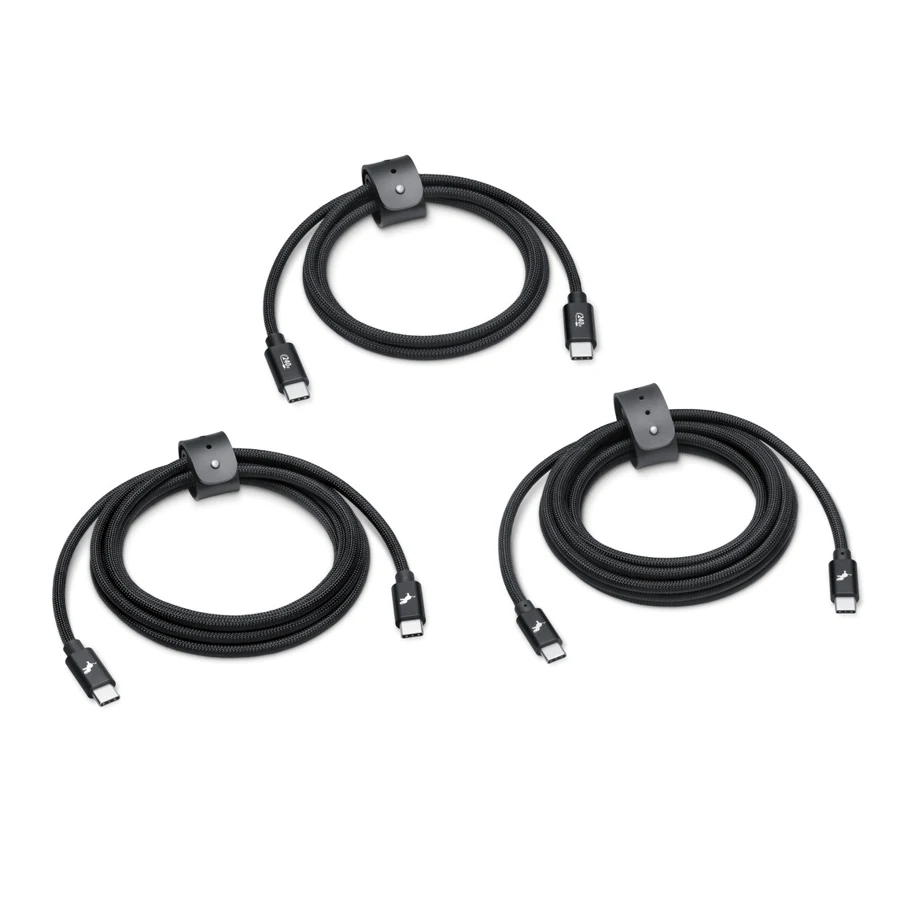
An external SSD is limited by the supported connection across the drive, enclosure, cable, hub, and computer. USB 3.2 includes 5, 10, and 20Gbps rates; the name alone is not enough. A charging-focused USB 2 cable can be the wrong link even when its wattage is high.
The obvious upgrade is the drive. The useful diagnosis begins one step earlier: what sits between that drive and the computer.
Separate Power from the Data Path
The Nimble charging cable example in our cable guide carries a 240W power rating and a 480Mbps data rating. The Anker 555 hub, by contrast, documents 10Gbps data ports. Connecting fast storage through a slower cable does not inherit the hub's headline capability.
Record the cable model instead of describing it as “the USB-C one.” Check the drive or enclosure and the exact computer port too. USB-IF notes that USB 3.2 includes several rates and works at a common supported capability.
Use the Numbers as a Floor, Not a Forecast
A 100GB transfer contains 800 gigabits, so a 10Gbps raw link gives an 80-second mathematical floor. Real file copying also depends on overhead, file sizes, caching, the read and write devices, and background activity.
That arithmetic helps spot an impossible expectation. It does not rank SSDs or replace a controlled benchmark.
With a backup of important files, use a representative file set and keep the copy direction consistent. Compare a supported direct connection with the hub arrangement. Note file count, total size, and the exact cables used. Repeat rather than building a conclusion on one run affected by caching.
If the direct path is adequate, investigate the hub path before replacing the SSD. If both are too slow, identify the bottleneck rather than buying the highest printed number. Capacity or a better backup routine may be a more valuable purchase when transfers already finish quickly enough.
Mentioned in this story
These links lead to official or retailer pages. We currently earn no affiliate commission from them. Check the destination for regional availability, configuration and pricing.
Anker 555 View at retailer ↗