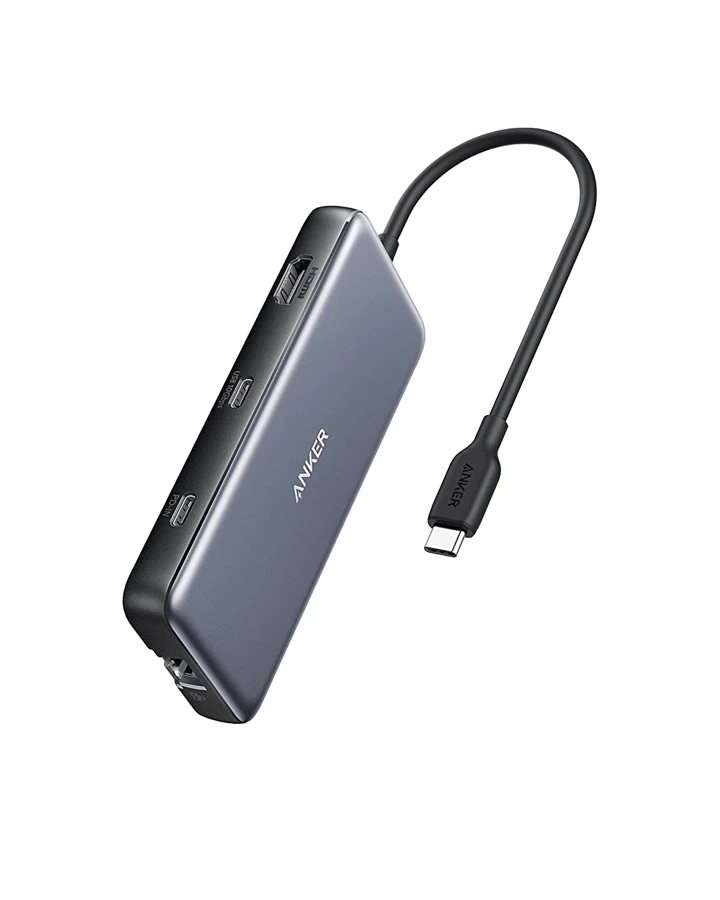
A dock with two display sockets looks like the answer to a two-monitor desk. The missing detail is what the computer can send through those sockets, and under which conditions.
The model name is only the start
Record the exact chip from your Mac's information screen. Keep suffixes such as Pro and Max. Apple publishes different supported configurations, including resolution and refresh-rate conditions, for different chips.
Follow the current Apple page for the machine you own. A display limit from a different chip configuration may not apply.
Describe the desktop, not the number of plugs
Do you want two independent external desktops? Must the laptop's own screen remain usable? Which resolution and refresh rate should each monitor run? Write those requirements before comparing docks.
A seller saying “supports two monitors” may be answering a different question, such as mirroring one image or using additional software. Request a connection diagram for your exact laptop and intended layout.
Reduce the chance of an expensive return
Read software requirements before checkout, particularly for a work-managed computer where you may not be allowed to install drivers. Confirm the included host cable and the display cables you need to add. Then check the return terms for the exact merchant and region.
We are not recommending a particular dual-display dock here because the correct choice depends on that completed configuration. The useful next step is a precise compatibility question. Once it is answered, use the monitor-mode guide to check the adapter and cable requirements without buying features your Mac cannot use.
Mentioned in this story
These links lead to official or retailer pages. We currently earn no affiliate commission from them. Check the destination for regional availability, configuration and pricing.
MacBook Air View official specifications ↗MacBook Pro View official specifications ↗