When a monitor stays dark, buying another cable is an easy next step. On the Anker 555, first check whether the monitor is connected to a socket that can carry video at all.
Follow the Socket's Job, Not Its Shape
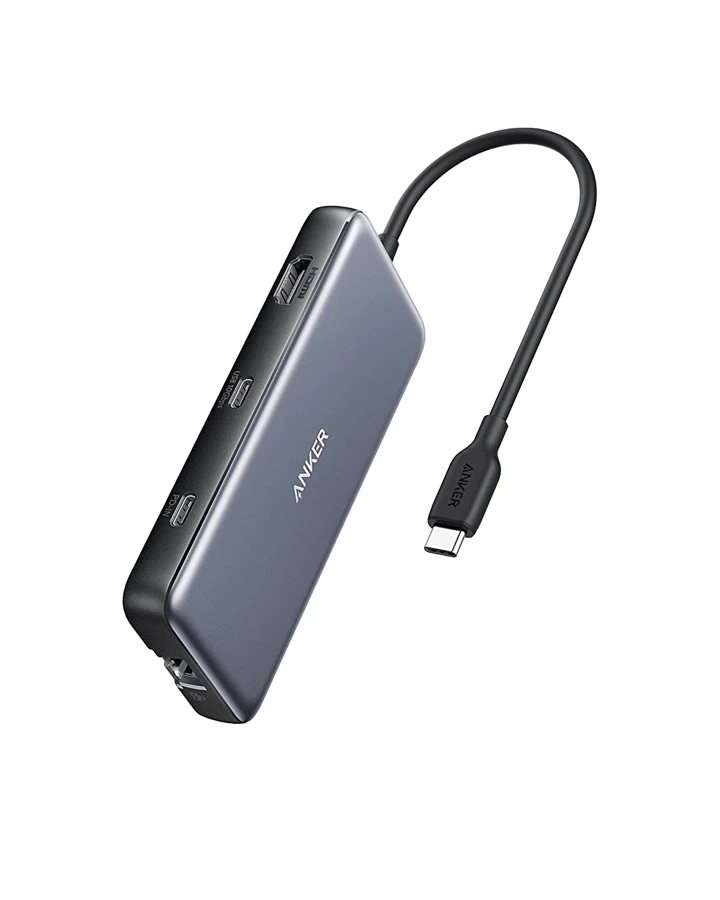
The A8383 manual distinguishes the PD-IN charging socket from the 10Gbps USB-C data socket. Its display path is HDMI. The two USB-C-shaped connections do not promise the same functions, and neither can be promoted to a display output by wishful cable shopping.
For an SSD, use a documented data port. For laptop pass-through charging, use PD-IN with the required charger and cable. For the monitor, follow the HDMI instructions and host requirements.
The Computer Still Has to Provide the Display Signal
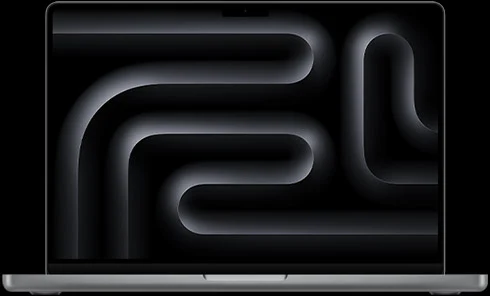
The hub's manual requires a laptop USB-C connection with DisplayPort Alt Mode for HDMI display output. If the computer's port does not support that function, the hub cannot create it. Look up the exact laptop port, especially when the machine has more than one similar-looking socket.
The fastest useful support request includes the laptop model, operating system, hub model, monitor and cable connection. “It has USB-C” does not identify enough of the setup.
Consider the 555 when your job is one supported HDMI display, USB peripherals, storage and wired Ethernet through a compact hub. Do not choose it for a requirement that depends on video from its USB-C data socket.
Its US listing showed $49.99 when checked on September 7, 2026. Before ordering, read the display and power guides so the total purchase includes any required charger and cables. If your present hub has the right sockets already, correcting the connection may solve the problem for nothing.
Mentioned in this story
These links lead to official or retailer pages. We currently earn no affiliate commission from them. Check the destination for regional availability, configuration and pricing.
Anker 555 View at retailer ↗